| Previous | Contents |

Moving a job within a job group affects the layout of the job group only. It does not change any aspect of job execution or job control data. The default arrangement is according to the sequence of execution.
For instance, the first job to be executed in a group would be on the far left of the job group. Jobs that execute subsequently would follow to the right. This not only displays the flow of the jobs in the job group but makes the jobs easier to follow during actual execution.
The other way of arranging jobs is from top to bottom. In this case, the flow would be followed from the top job down. In fact, the Change orient selection on the Display menu toggles between left to right job layout and top to bottom job layout.
In order to move job(s) about the job group, select the move job icon and select the job(s) to be moved.
See Section 3.1.1.1 for details on how to select the job(s) for moving.
3.2.2 Remove job

The remove job operation only removes the job box from the job group window. It does not affect the dependencies that may exist within that job or delete the job from the database. The only effect of the removal is that the job is no longer displayed in the layout. |
The remove job icon is useful in removing any job boxes that need not be displayed in the job group window. This may be to clean up the job group window in order to monitor only those jobs that are integral to a certain task or simply because only certain jobs in the group need to be displayed.
In order to remove job(s) from the job group, select the remove job icon and select the job(s) to be removed.
See s Section 3.1.1.1 for details on how to select the job(s) for removing.
3.2.3 Show Job Log

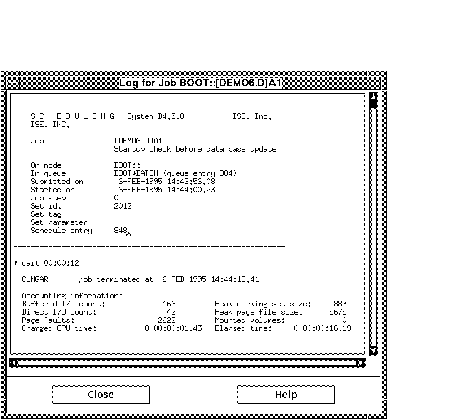
The log file is a record of the job run describing information such as queue name, submission and start time of job run, set id and success or failure of execution. The log file is useful for viewing a record of the most recent job run for a job in the job group.
In order to show the job log for a job in a job group, select the show job log icon and select a job. See Section 3.1.1.1 for details on how to select the job. The job log will be displayed as shown below.
See Section 2.10.3 for details on how to select the text to be displayed.
3.2.4 Current Queue State

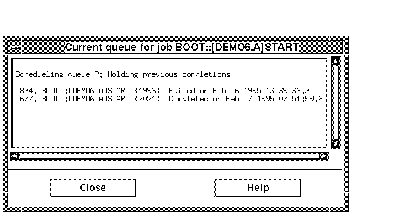
One of the pieces of information that the user will be interested in while a job group is being monitored is the current event queue state. This feature provides a snapshot of the queues that the job has passed through up to this point.
In order to display a snapshot of current event queues, select the event queues icon and choose a job in the job group window. See section Section 3.1.1.1 for details on how to select the job. The current event queues for that job will be displayed as shown below.
| Previous | Next | Contents |