| Previous | Contents |
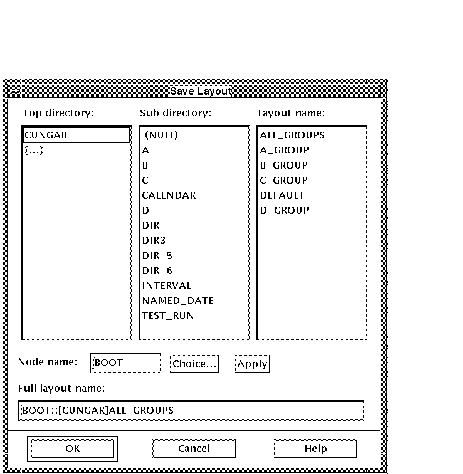
In order to save a new layout or save a previously saved layout under a new name. Save layout as... from the Layout menu. A dialog box will appear, as shown below.
2.4.5 Set default layout...
The default layout is the layout that will appear when starting the
MOTIF Editor/Monitor. In order to set the default layout, select
Select default layout... from the
Layout menu. The dialog box shown below will appear.
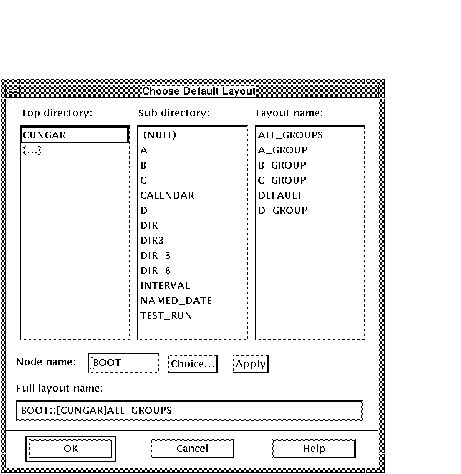
Choose the desired layout and select OK in the dialog box (or press
Return). The layout will then appear with each subsequent session until
the default is again changed.
2.4.6 Add job group
The Add job group menu selection branches to a sub menu which allows the merging and addition of job groups into a layout. The individual functions are explained below.
In order to access the Add job group sub-menu, select Add job group from the Layout menu. The sub-menu will appear which can now be accessed if needed.
2.4.6.1 Merge layout...
In order to merge the current layout with a previously saved layout,
select
Merge layout... from the Add job
group menu.
Choose the previously saved layout that will be added to the current layout in order to display the combination of the two. This layout can then be saved using either the Save as... or the Save selection.
2.4.6.2 Directory...
All jobs reside in directories which are used to group related jobs
into separate areas. The directory structure consists of two levels, a
top level and a sublevel. The
Directory... menu selection allows the user to select
a directory and add all jobs in that directory to the current group.
In order to select the directory, select Directory... from the Add job group menu. The directory dialog box will appear.
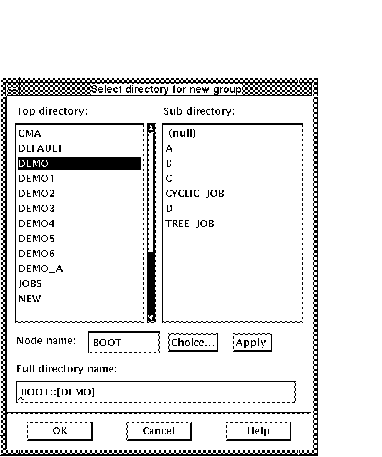
Select the directory by either clicking on the desired top level and
sublevel directory, using the arrow keys to select the directories, or
entering the full directory name by hand in the box at the bottom of
the dialog box.
2.4.6.3 Job...
In order to add a job and all it's attached dependencies, select Job... from the Add job group menu. The job dialog box will appear.
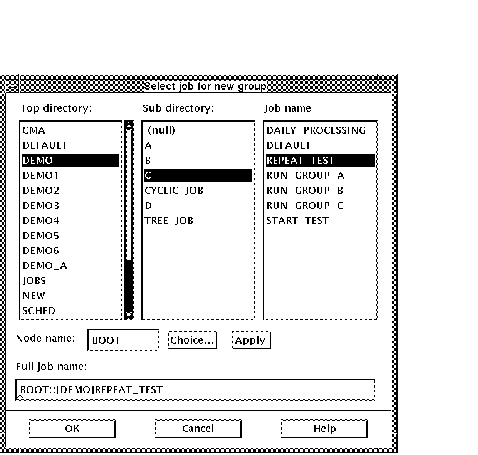
Select the job using either the mouse or the keyboard or fill in the complete name in the box. The new job group will appear which will include the chosen job and all attached dependencies.
| Previous | Next | Contents |