| Previous | Contents |
The figure below shows the effect on the menus in the Job Group Window of disallowing the Allow update data switch.
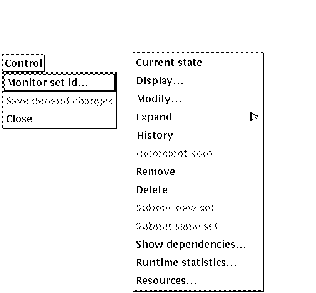
The greyed out items on the menus all pertain to operations which
modify aspects of the SCHEDULE database. These are not
accessible when update data is disallowed in order to prohibit
modification of database entries.
2.3.3 Update All Names
Occasionally the directory, job and calendar names in the dialog box listings may not reflect the latest updates to the database. This may occur when the database has been changed outside of this session of the MOTIF Editor/Monitor. If you suspect the list is not current, the list may be updated using the Update all names selection.
In order to update all directory, job and calendar names, select
Update all names from the Job menu.
2.3.4 Quit
The Quit selection from the Control
pull down menu allows the user to quit (or exit) from the monitor
program.
2.4 Layout
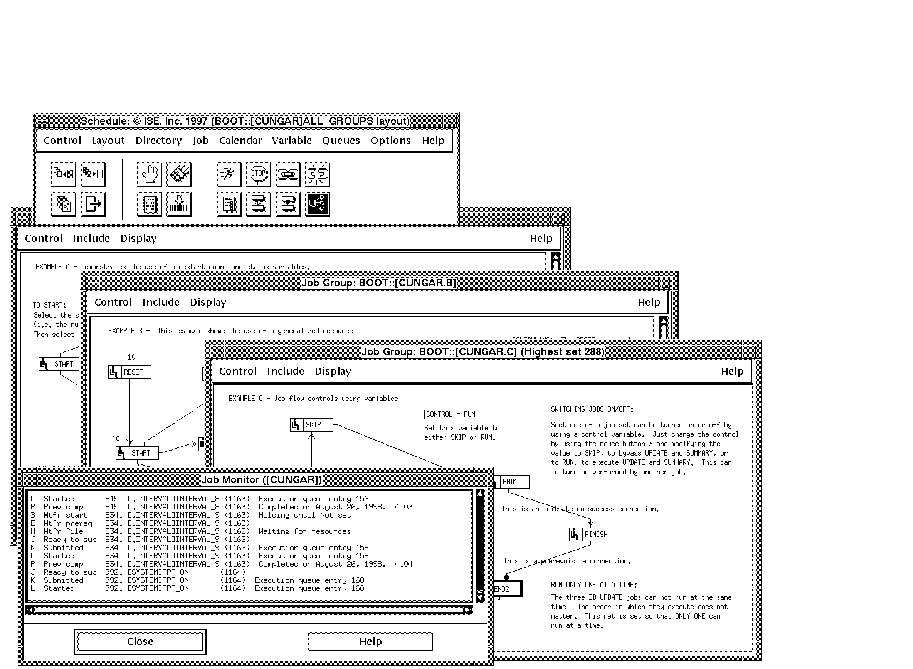
While some sessions in the MOTIF Editor/Monitor may involve only one job group containing a single job, it is possible a user will want to be able to open up a variety of job groups in a session. For instance, suppose a user has a number of jobs that are related to a certain project or department. Using layouts, a user can set up a selection of related jobs in job groups and open them up when needed. The position and sizing of all the job groups is also preserved when saved in the layout and can be opened later.
The Layout menu allows users to save, open, set a default layout and add jobs to a layout. In addition, a job monitor window may be added to the job groups and saved as part of the layout. The following sections detail the functions that may be performed by this menu.
Figure 2-2 Typical Editor/Monitor Layout
2.4.1 Clear layout
In order to clear the current layout and remove all jobs from the
screen, select
Clear layout from the Layout menu.
All displayed jobs in the current layout will be closed and removed
from the screen.
2.4.2 Get layout...
In order to open a previously saved layout and display it on screen for
modification or monitoring, select
Get layout... from the Layout menu.
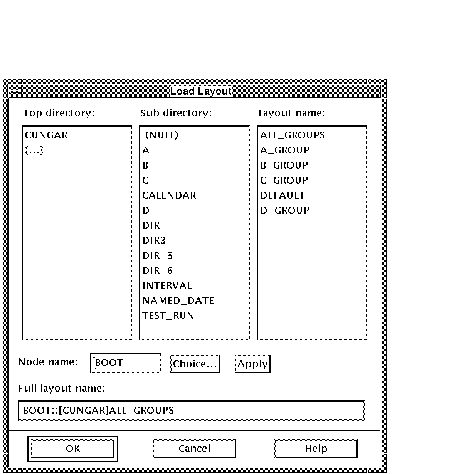
The Get layout... dialog box shown will appear. Upon
selecting the desired layout, it will appear for editing and/or
monitoring.
2.4.3 Save layout
In order to save a previously saved and named layout as it appears on
the screen, select
Save layout from the Layout menu. The
current layout will be resaved as it appears on the screen.
The name of the current layout appears in the title bar of the Command Center window.
| Previous | Next | Contents |